

Connect your own widget copy to CanvaConnect your ownwidget copy to Canva
Turn the seller's Canva template into your own working website. Personalize the included widgets, connect your links and keep every RSVP, date and detail under your account.Turn the seller's Canva template into your own working website.Personalize the included widgets, connect your links and keepevery RSVP, date and detail under your account.
From your purchase to a working Canva website
The seller provides the design and the live widgets behind it. Three steps connect everything to your event.
- 1
Receive both parts
Open the Canva template and the separate Invitarium delivery link supplied by the seller.
- 2
Make the widgets yours
Personalize each delivered widget in Invitarium, check its preview, and copy its public link.
- 3
Connect the design
Place your links in the Canva template, then preview the complete website before sharing it.
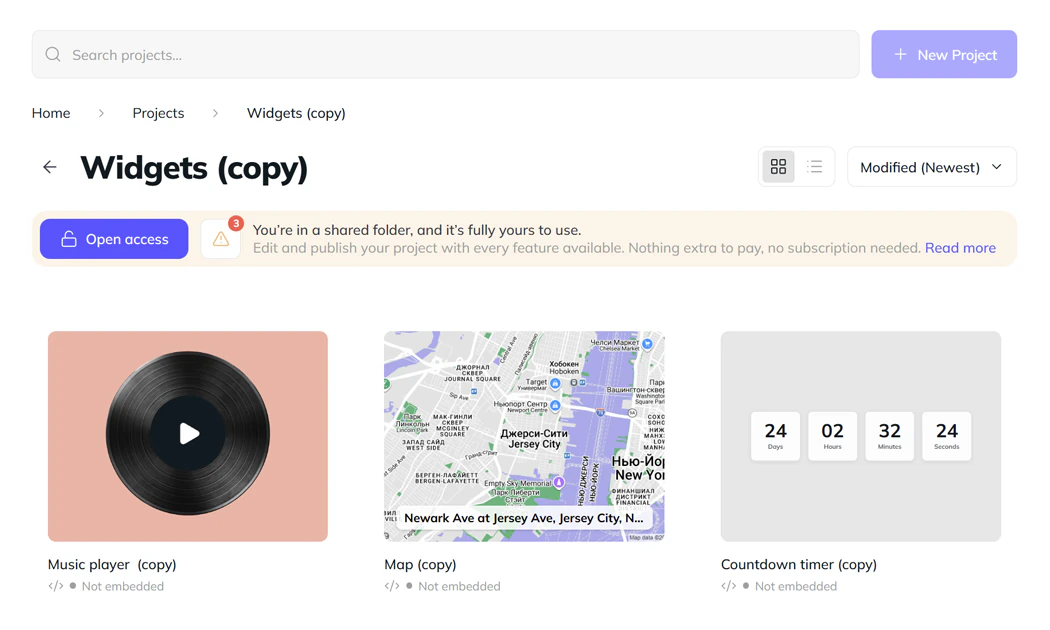
Start with both parts of your purchase
The Canva template and the Invitarium delivery do different jobs. One gives you the design; the other places independent copies of its live widgets in your account.
- The Canva link opens your editable copy of the design.
- The Invitarium link delivers every included live widget.
- Sign in once and wait until the delivered set appears in Projects.
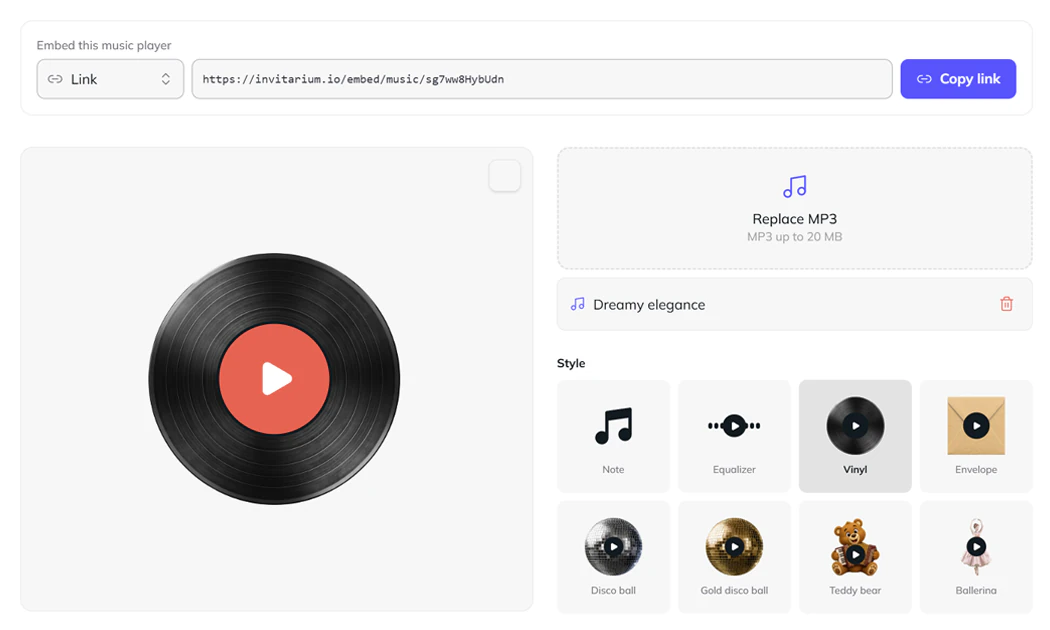
Make every live widget yours
Open the delivered widgets in Invitarium before editing Canva. Each one has its own settings and public link, independent from the seller's original.
- Replace example dates, text, music, locations, and other event details.
- For RSVP, confirm the notification email that should receive responses.
- Check the preview, choose Link, and use Copy link for Canva.
Choose how to add the widget in Canva
Use whichever method matches the template you received. All three connect the Canva design to the widget in your Invitarium account.
01
Paste the link directly
This is the simplest option. Copy the widget link in Invitarium, click an empty area of the Canva page, and press Ctrl+V on Windows or Command+V on Mac. Canva adds the embed directly.
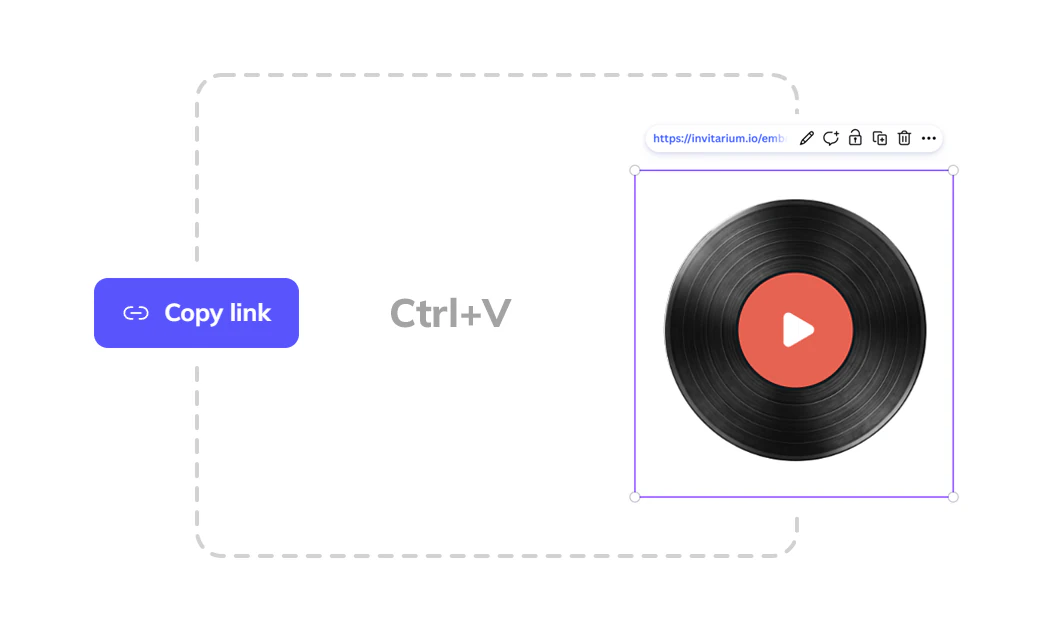
An Invitarium widget link pasted directly onto a Canva page. 02
Use the Embed app
Open Apps > Embed, paste your Invitarium widget link, and add the embed to the page. Resize and position it in the prepared space.
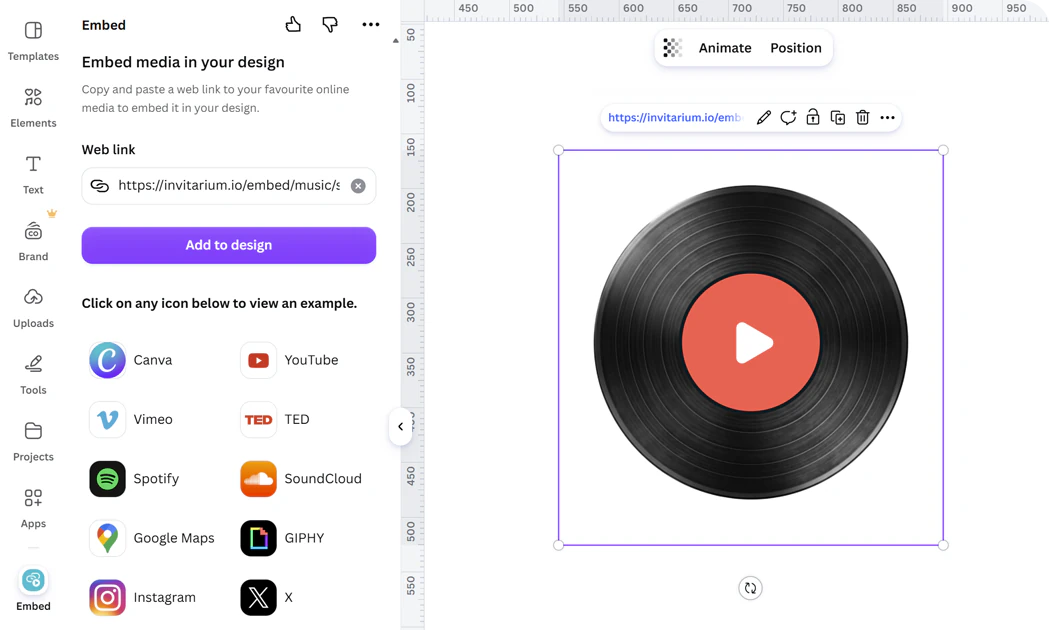
An Invitarium widget link added through the Embed app in Canva. 03
Replace the existing link
Select the widget placed by the seller and replace its current URL with the link from your Invitarium copy. The widget keeps its prepared size and position.
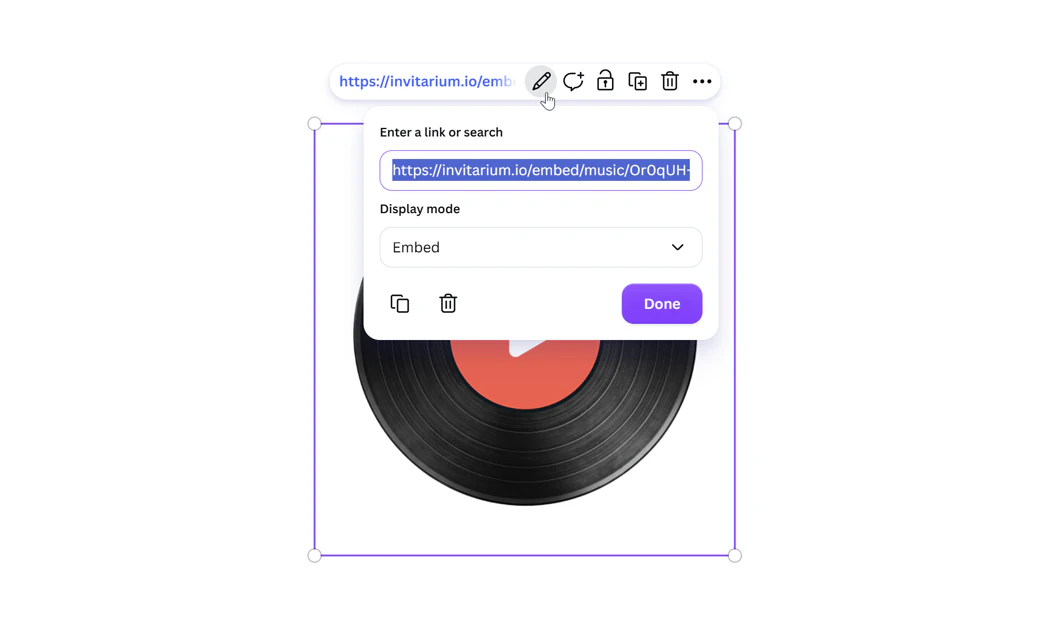
The seller's widget URL replaced with the buyer's own Invitarium link in Canva.
Why the link must be yours
Your delivered widget is already independent in Invitarium, but the Canva template still points to the URL placed there by the seller. Replacing that URL connects the website to your settings and keeps RSVP responses in your account.
Publish, test and share
- 1
Publish the website
Choose Publish Website, enter the website address, review the settings, and publish your Canva website.
- 2
Test the website
Open the published website and test every widget. If it includes RSVP, submit one test response.
- 3
Send the link to your guests
Once everything works correctly, share the published Canva website link with your guests.
Find every RSVP response in Invitarium
Canva displays the form, but Invitarium stores the guest list. Responses submitted through your RSVP widget stay with that widget in your account.
01
Open Responses
Choose Responses in the left sidebar. Its badge shows unread replies, or the total when everything is read.
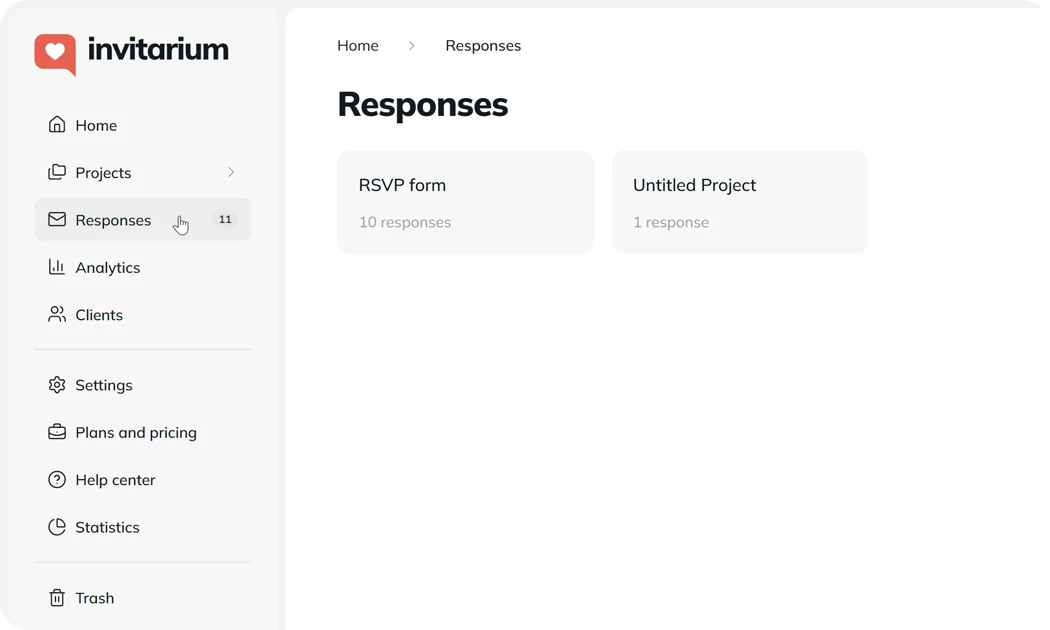
Responses in the Invitarium sidebar with its response count badge. 02
Choose the form
An RSVP form appears after its first submission. Select it to open the complete response table.
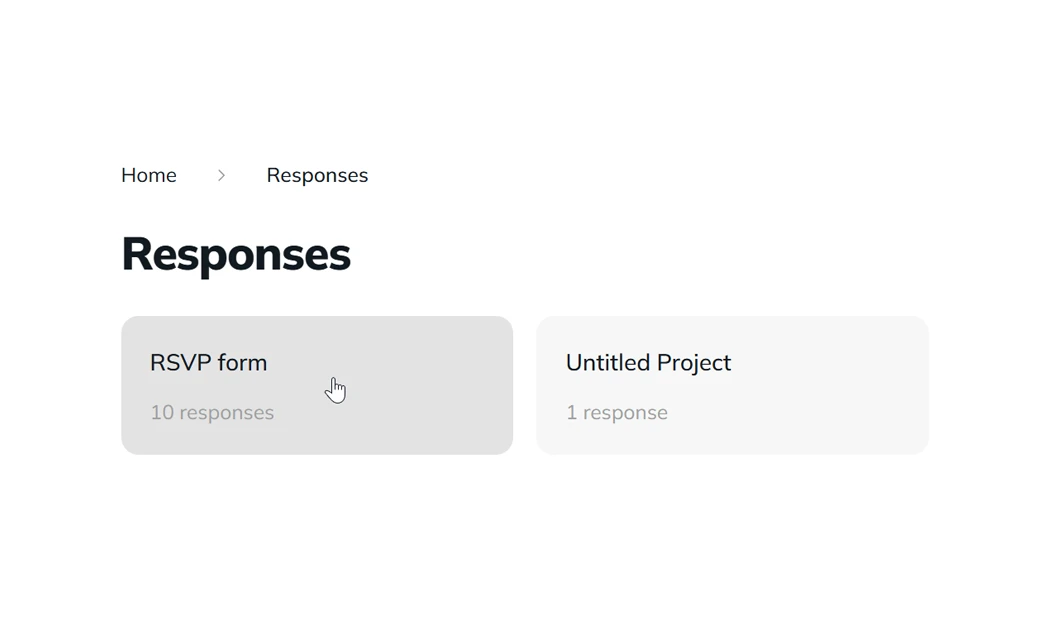
The RSVP forms list with the delivered form ready to open. 03
Manage the guest list
Search, sort, mark replies read, edit or delete them, and download the results as CSV or PDF.
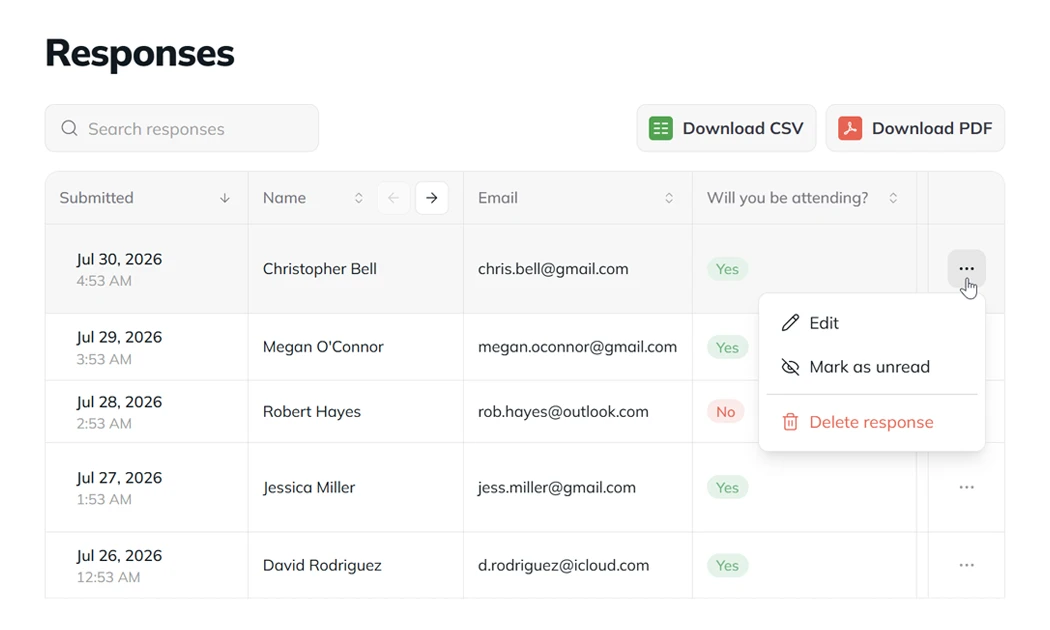
The response table with guest answers and management actions.
If the widget does not look right
Read the how-to in the Help Center
Continue with your delivered widgets
Related guides
- Make Canva templates interactive
Add live RSVP forms, countdowns, music and more to a Canva invitation, then give every buyer independent widget copies they can personalize.
- Share your designs
Deliver a complete Invitarium site or the live widgets behind a Canva template from one reusable link. Every buyer receives an independent copy while your master stays untouched.
- Collect RSVPs anywhere
Add a standalone RSVP widget to your invitation, then keep attendance, guest details and every reply together in Invitarium.