

Make Canva templates interactiveMake Canvatemplates interactive
Add live RSVP forms, countdowns, music and more to a Canva invitation, then give every buyer independent widget copies they can personalize.
The complete Canva seller workflow
A live widget is only half of the product. The correct handoff connects your Canva template to independent Invitarium copies, so every buyer can personalize their own dates, RSVP settings, music and links. This workflow is for Canva Websites and other published formats that keep embeds interactive, not static exports.
- 1
Build the working template
Create the widgets in Invitarium, add their copied links to your Canva design as working examples, and test the published result.
- 2
Deliver both parts
Send the Canva template and one reusable Invitarium delivery link together. The design and its live pieces travel as one product.
- 3
Switch every buyer to their copy
The buyer signs in, claims and personalizes their widget copies, then replaces your example links before publishing their Canva design.
Choose the live widgets yourCanva template needs
Build only the interactive pieces that belong in this product. Each widget has its own editor, preview and public link, and every buyer receives independent copies through the same delivery flow.
- 9999
Countdown timer
Count down to the event date and time with styling matched to the invitation.
RSVP form
Collect attendance and guest details in a form whose responses belong to the buyer's copy.
Music player
Add a guest-controlled soundtrack. Playback may require the visitor's first tap.
Calendar
Give guests a clear Save the date action for adding the event to their calendar.
Map
Show the event location in an interactive map so guests can find the venue from the invitation.
Accordion
Organize schedules, travel notes, dress codes and frequently asked questions in expandable rows.
QR code
Create a scannable route to the URL the invitation needs, with styling controlled in Invitarium.
Build your Canva template with Invitarium widgets
Use your own live widgets as working examples while you build. After delivery, each buyer replaces those examples with the links from their independent copies.
- 01
Design the Canva template
Build the pages and decide where the countdown, RSVP form, music player or other live elements belong.
- 02
Create the matching widgets
Open Projects in Invitarium and create each standalone widget the product needs. Match its styling to the Canva design.
- 03
Add the widget links
Save each widget, use Copy link, then add that URL to the matching place through Canva's embed workflow.
- 04
Publish and test
Publish or preview the Canva Website and test every interaction before turning the design into a product template.
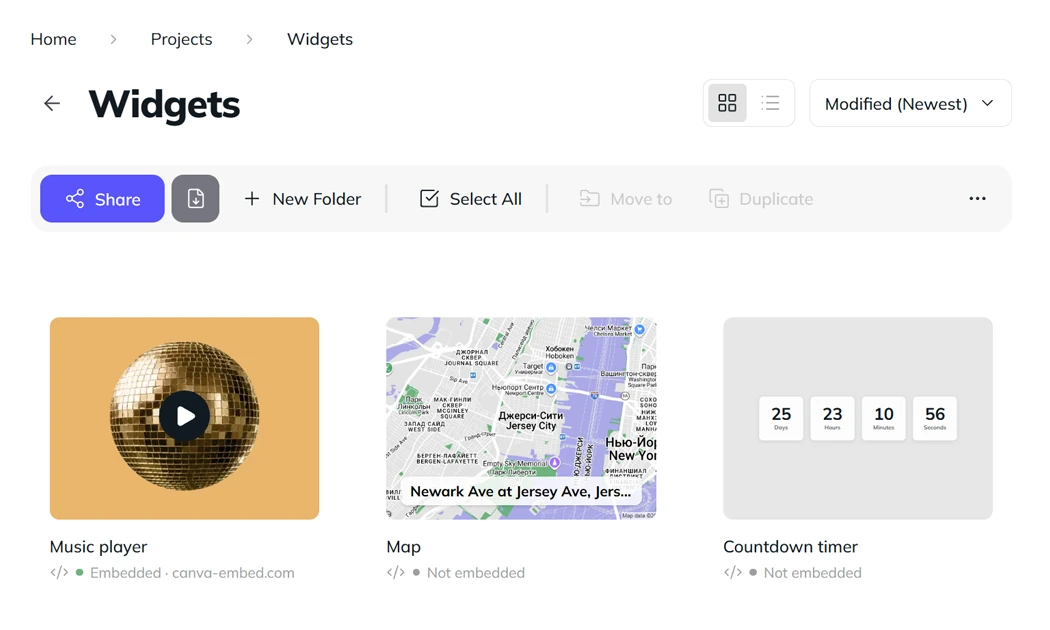
Prepare one reusable delivery
Keep the matching widget originals together in one Invitarium folder and share it once. Send that delivery link beside the Canva template link with every sale.
- Reuse the same delivery link for every buyer of this product
- Your widget originals remain your untouched master set
- The Canva template link and Invitarium delivery link go out together
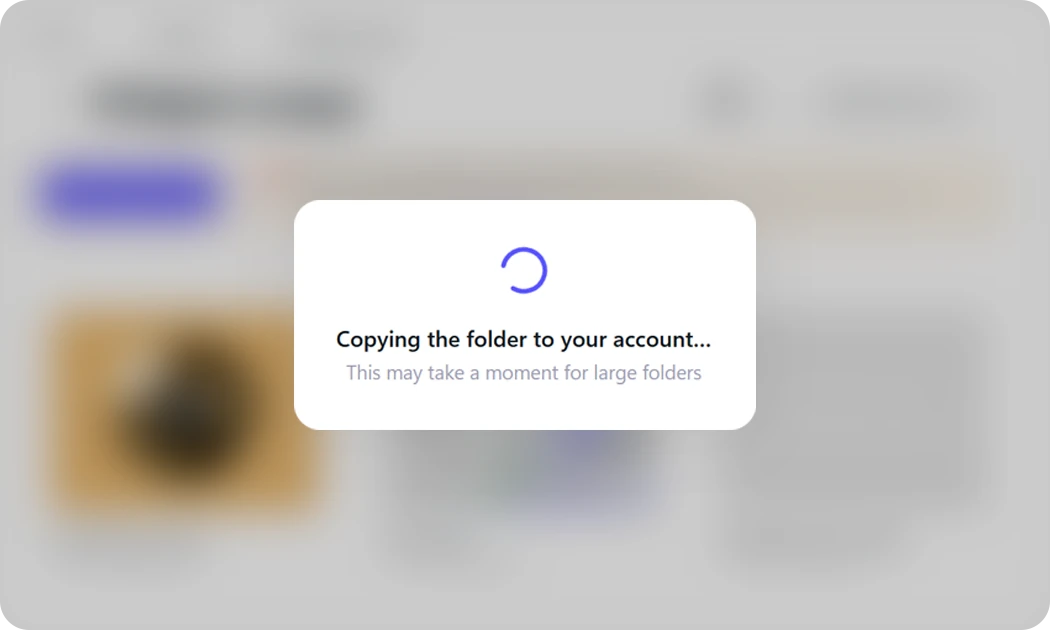
Each buyer receives independent widget copies
When a buyer signs in through the delivery link, Invitarium copies the folder to their account. Each widget gets a fresh URL, owned files follow, and enabled RSVP notifications switch to the buyer's email.
- One independent widget copy for each buyer
- A fresh public link for every copied widget
- Enabled RSVP email notifications move to the buyer's account email
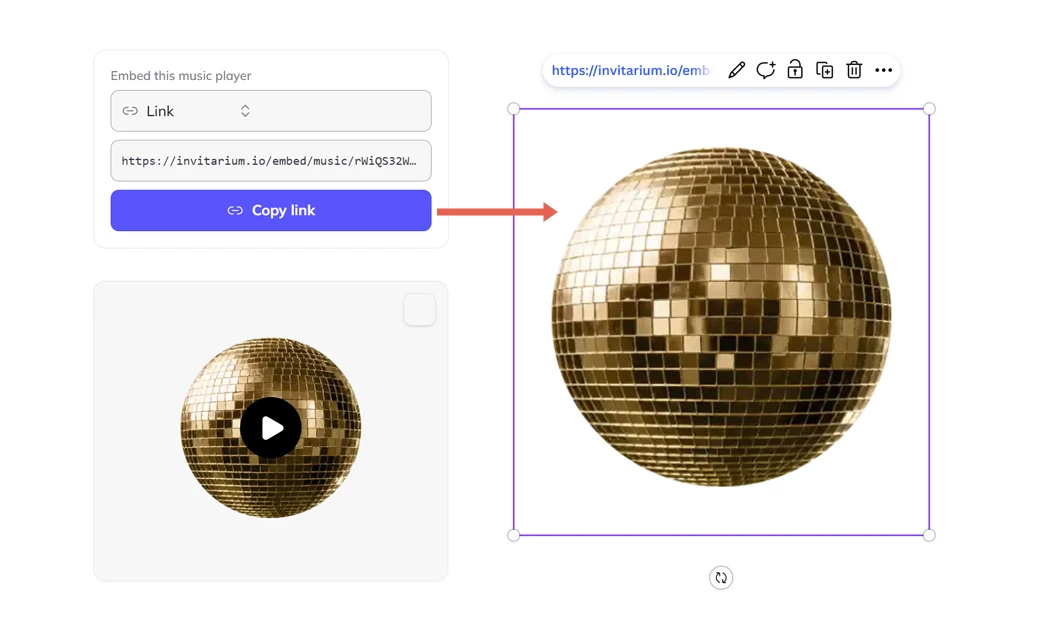
Replace the example embeds before publishing
Your Canva template keeps the example URLs. The buyer personalizes each copied widget, uses Copy link, and replaces the matching embed in their Canva copy.
- Replace every example widget, not only the first one
- Preview or publish the Canva website and test it as a guest
- If Canva keeps an old preview, copy a fresh link and replace it again
Why the buyer's own link matters
A copied widget becomes independent only after its fresh URL is used in the buyer's Canva design. Link replacement connects the purchased template to the buyer's live data. If the template keeps your URL, every buyer stays connected to your settings; with RSVP, responses continue to reach your form.
Run one complete delivery test before listing
Test the seller example
Add a freshly copied widget link to Canva, confirm it appears in the editor, then publish the Canva website and test the interaction.
Claim from a buyer account
Open the shared-folder link from a different account and wait for the independent folder and widget copies to arrive.
Personalize and copy the buyer link
Change the copied widget for the buyer's event, check the preview, then use Copy link in that buyer-owned widget.
Replace, publish and test again
Replace the seller example in the buyer's Canva copy, publish or preview it, and verify the live result on desktop and mobile.
Frequently asked questions
Read the how-to in the Help Center
Build the live part of your next Canva template
More for sellers
- Share your designs
Deliver a complete Invitarium site or the live widgets behind a Canva template from one reusable link. Every buyer receives an independent copy while your master stays untouched.
- Connect your own widget copy to Canva
Turn the seller's Canva template into your own working website. Personalize the included widgets, connect your links and keep every RSVP, date and detail under your account.
- Collect RSVPs anywhere
Add a standalone RSVP widget to your invitation, then keep attendance, guest details and every reply together in Invitarium.